MT Manager — one app for every MetaTrader terminal you run.

A free MetaTrader manager for Windows. It finds every MetaTrader 4 and MetaTrader 5 terminal installed on your PC, manages your Expert Advisors and indicators, clears out junk files, duplicates terminals, and downloads EAs straight from a link — all from a single window.

Free & open Windows 7 SP1 → 11 No account needed Zero telemetry
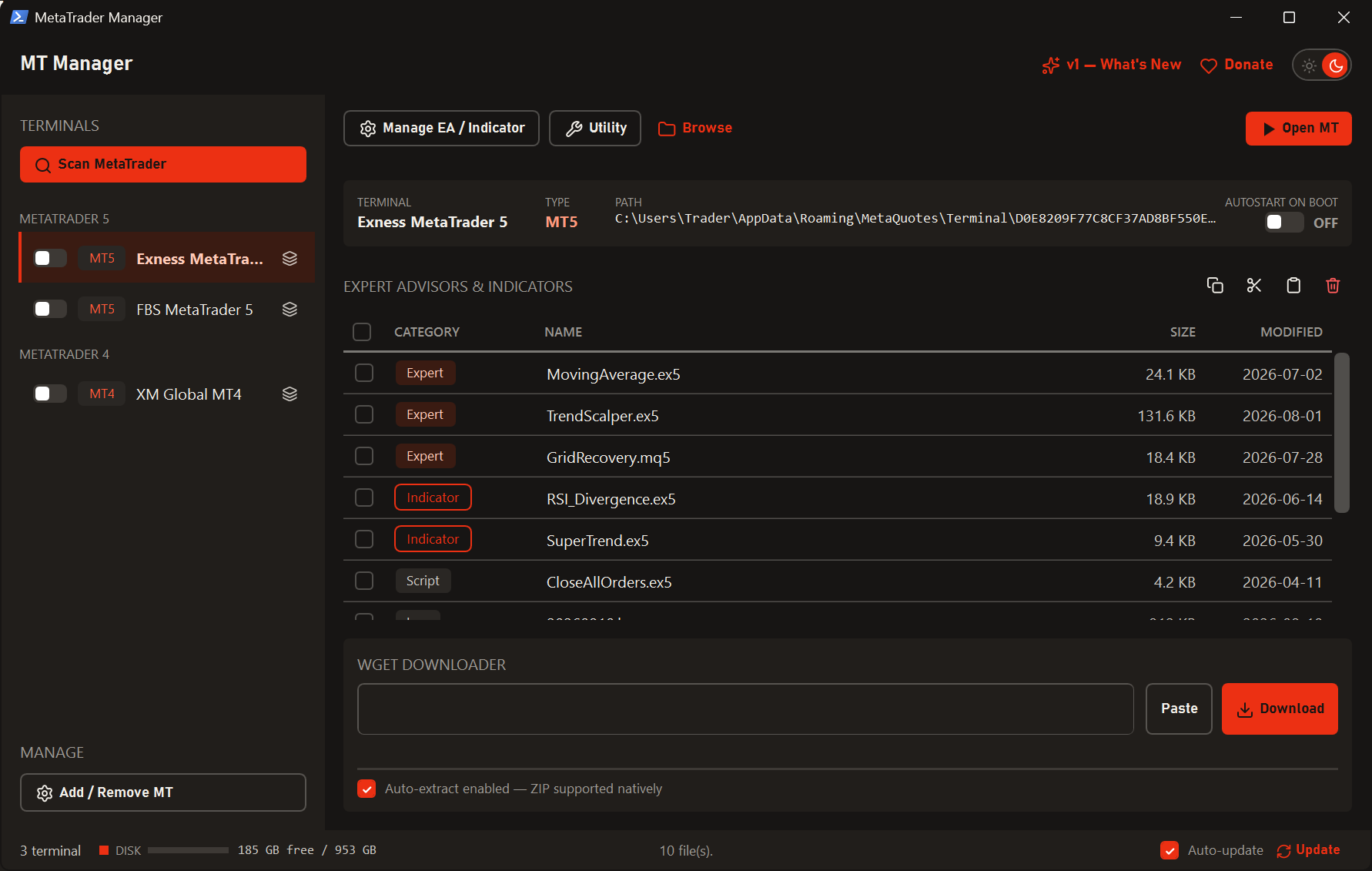
MT Manager main window showing detected MetaTrader terminals and their files
The problem

Running several accounts shouldn't mean endless folder digging.

If you run more than one MetaTrader account, the small jobs become the tiring ones.

  • Installing one EA across five terminals means opening five data folders.
  • Wondering why the disk is full? Go dig through Logs, Bases and Tester yourself.
  • Need a second terminal from the same broker? Reinstall it from scratch.

MT Manager brings all of it into one place. Your terminals are detected for you, their contents are laid out by category, and every action is a single click away.

MT4 + MT5Both platforms detected automatically
7File categories, colour-coded
1 clickTo clear logs, ticks or cache
0Data collected about you
Features

Everything your terminals need, in one window

No configuration, no setup wizard. Open it, scan, and start working.

Every terminal, found automatically

Hit Scan MetaTrader and every installed MT4/MT5 shows up in the sidebar, grouped by type. Select one to see its name, platform, data folder and whether it starts with Windows.

Its contents appear as one clean list with a colour-coded label per category, along with each file's size and last-modified date.

Expert AdvisorIndicatorScript LogHistoryTicksCache
Terminal list and the categorised file table

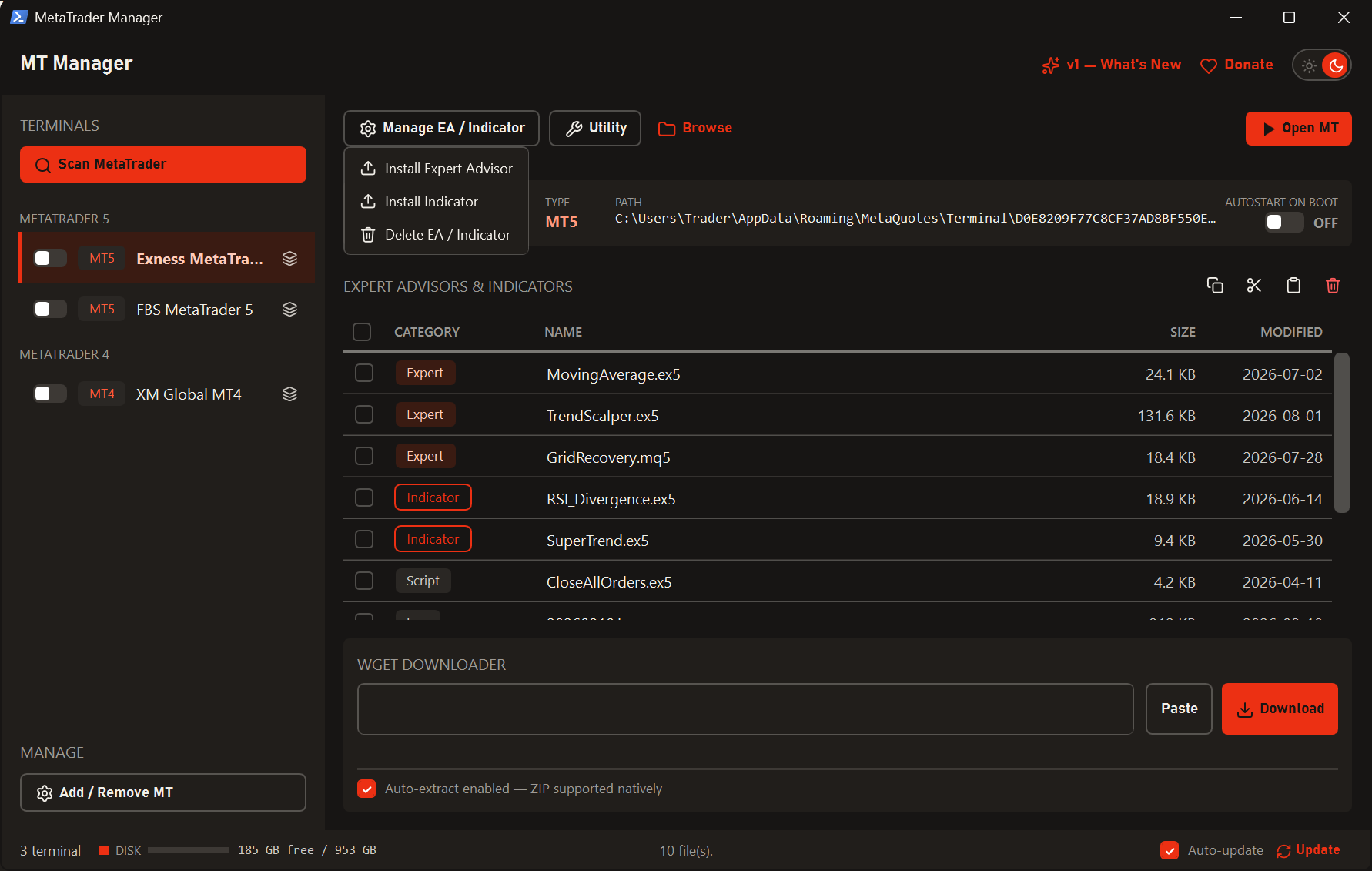
Manage EAs and indicators

Install an EA or indicator into the selected terminal without ever needing to know which folder it belongs in. Need to remove some? Tick several files and delete them in one go.

Copy / Cut / Paste works across terminals too, which makes putting the same EA on several accounts quick.

Manage EA / Indicator menu open

Clear out the junk

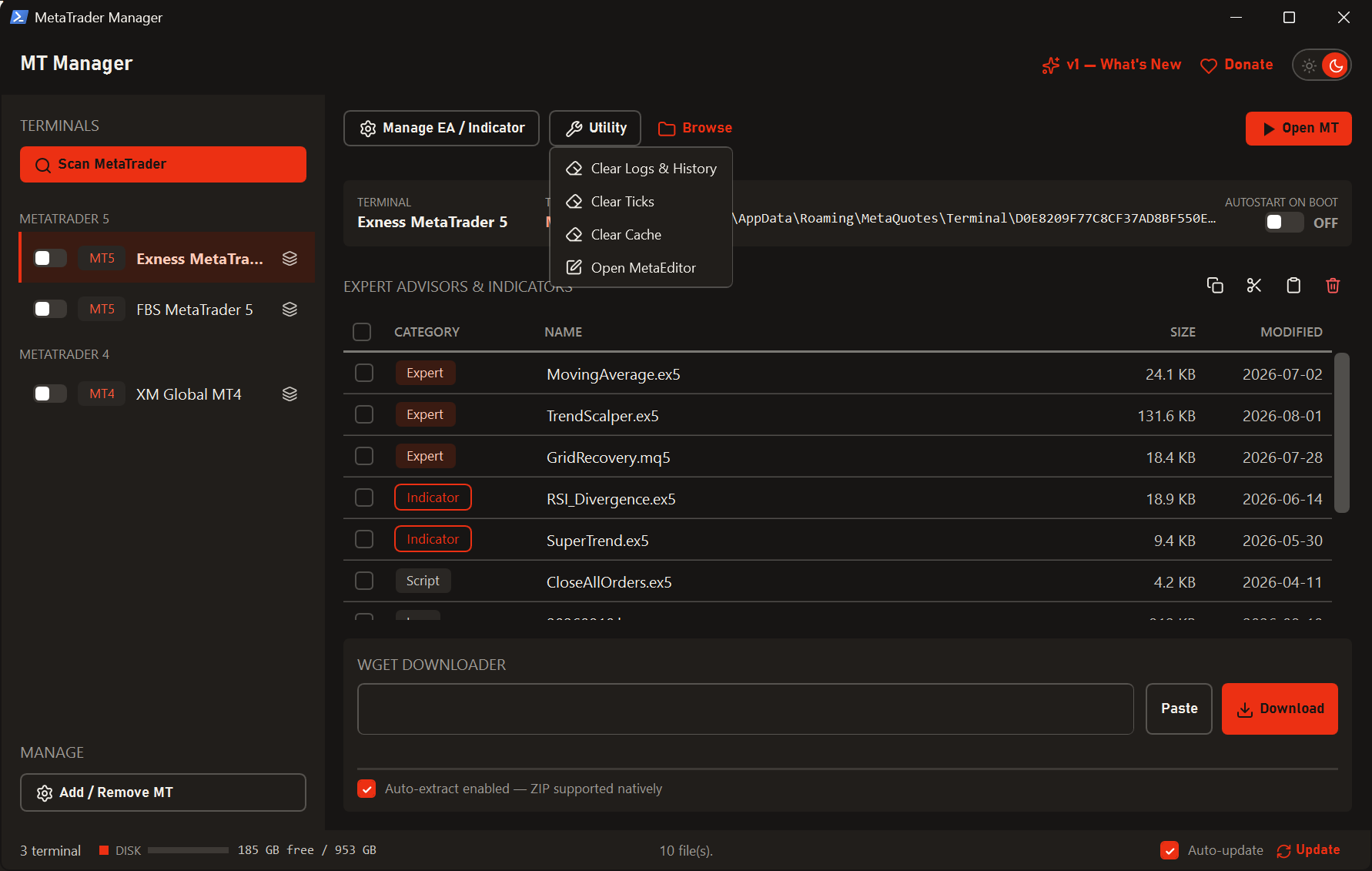
MetaTrader quietly piles up logs, price history, tick data and tester caches that can swallow tens of gigabytes. The Utility menu clears them by type, so you choose exactly what goes without touching your EAs or settings.

MetaEditor opens straight from here as well.

Utility menu with the clear options

Add or remove a terminal without leaving the app

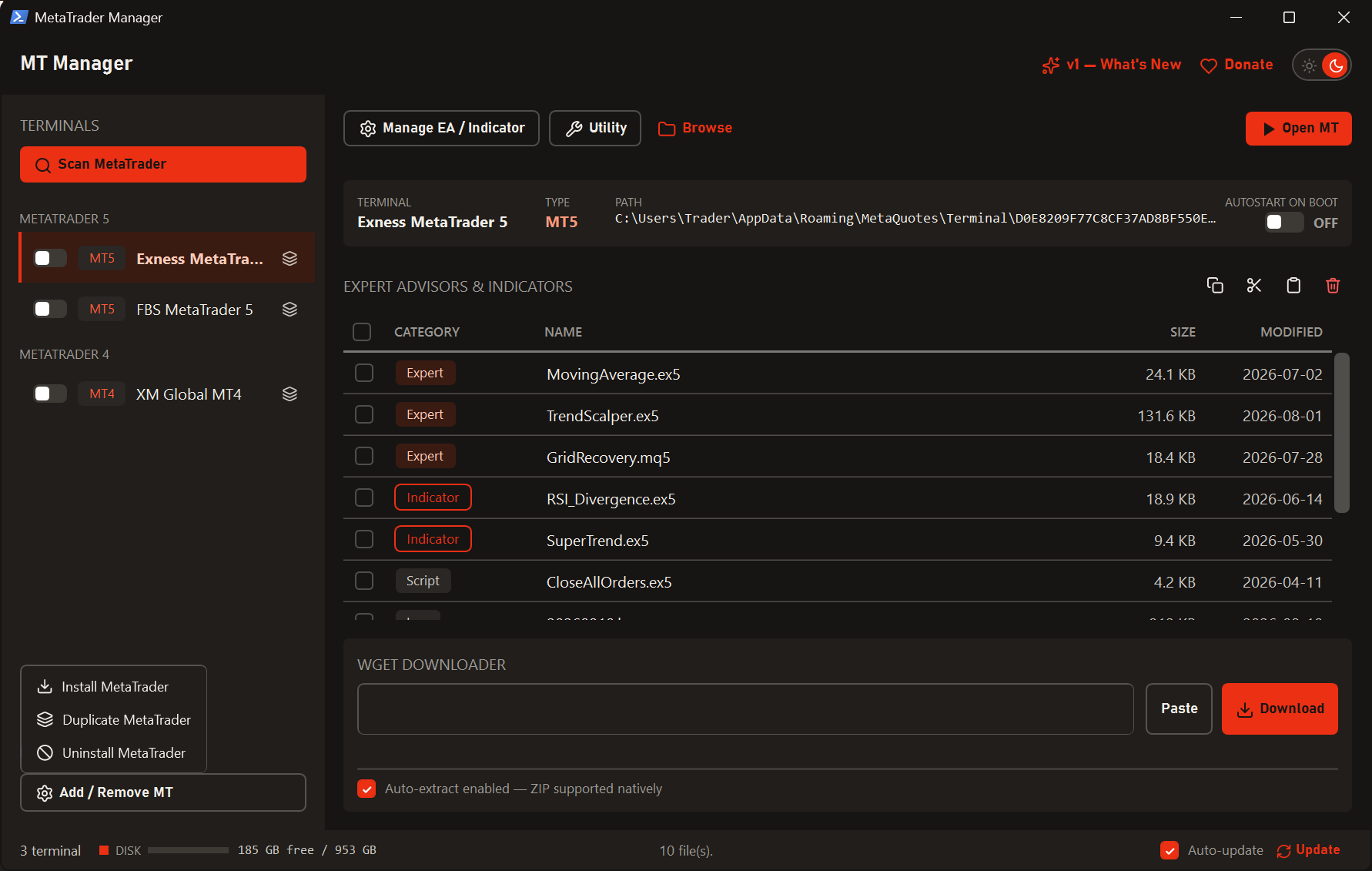
One menu covers the whole lifecycle: Install MetaTrader, Duplicate MetaTrader and Uninstall MetaTrader.

No hunting for broker download pages, no digging through Programs and Features.

Add / Remove MT menu with install, duplicate and uninstall

A broker list, ready to install

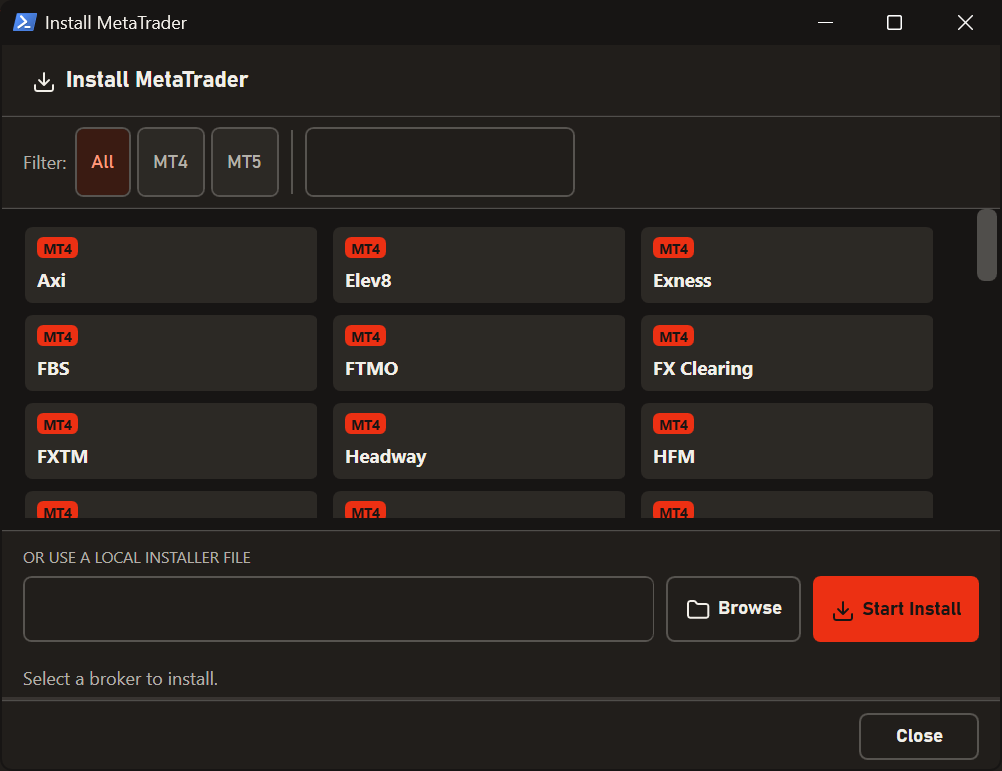
Install MetaTrader gives you a searchable list you can filter by MT4 or MT5 — pick a broker and the rest happens on its own.

Already have an installer file of your own? Point it at that instead.

Install MetaTrader window with the broker list

Duplicate a terminal in one go

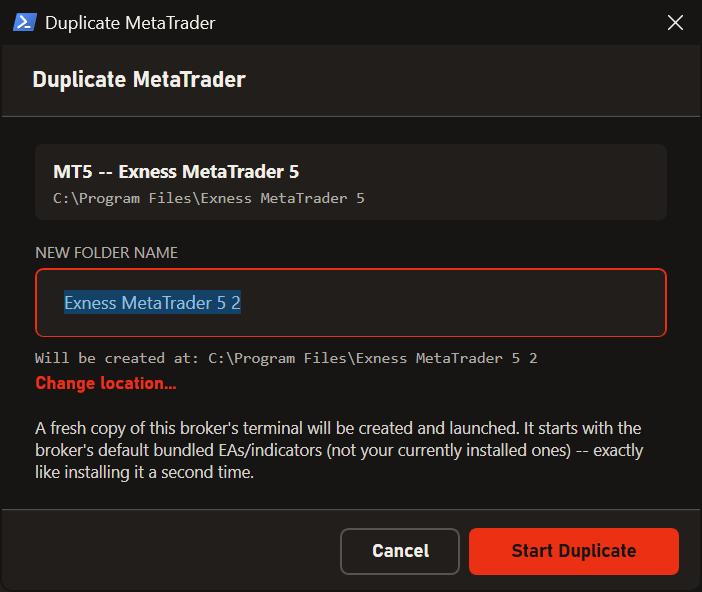
Duplicate MetaTrader creates a second terminal from the same broker, shows a copy progress bar, and launches it once it's done.

Handy when you hold several accounts at one broker and want each to have its own terminal.

Duplicate MetaTrader window with copy progress

Notifications that stay out of the way

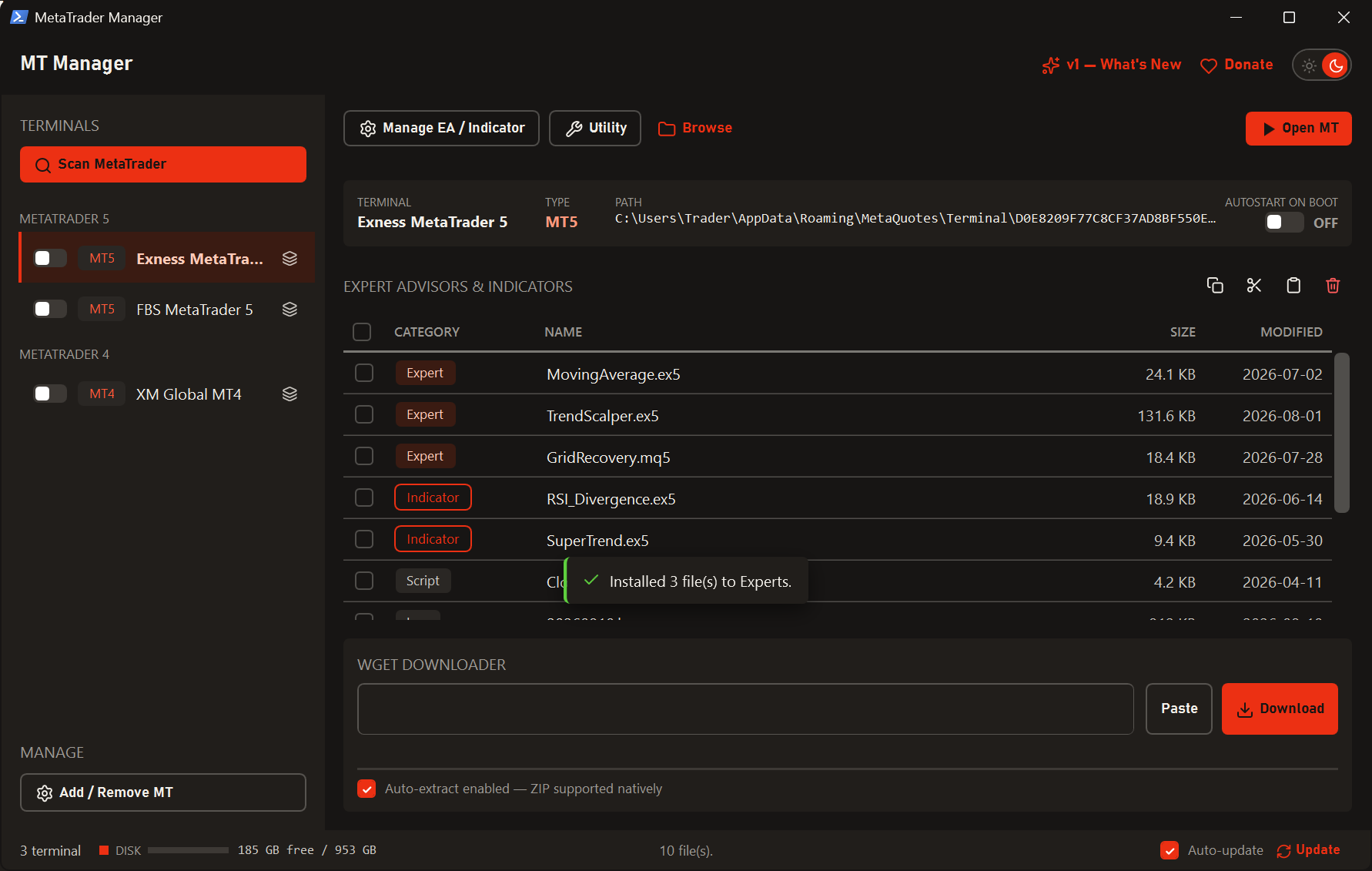
Messages appear briefly above the downloader and fade on their own. No more dialog boxes to dismiss every time something finishes.

A self-dismissing notification appearing above the downloader

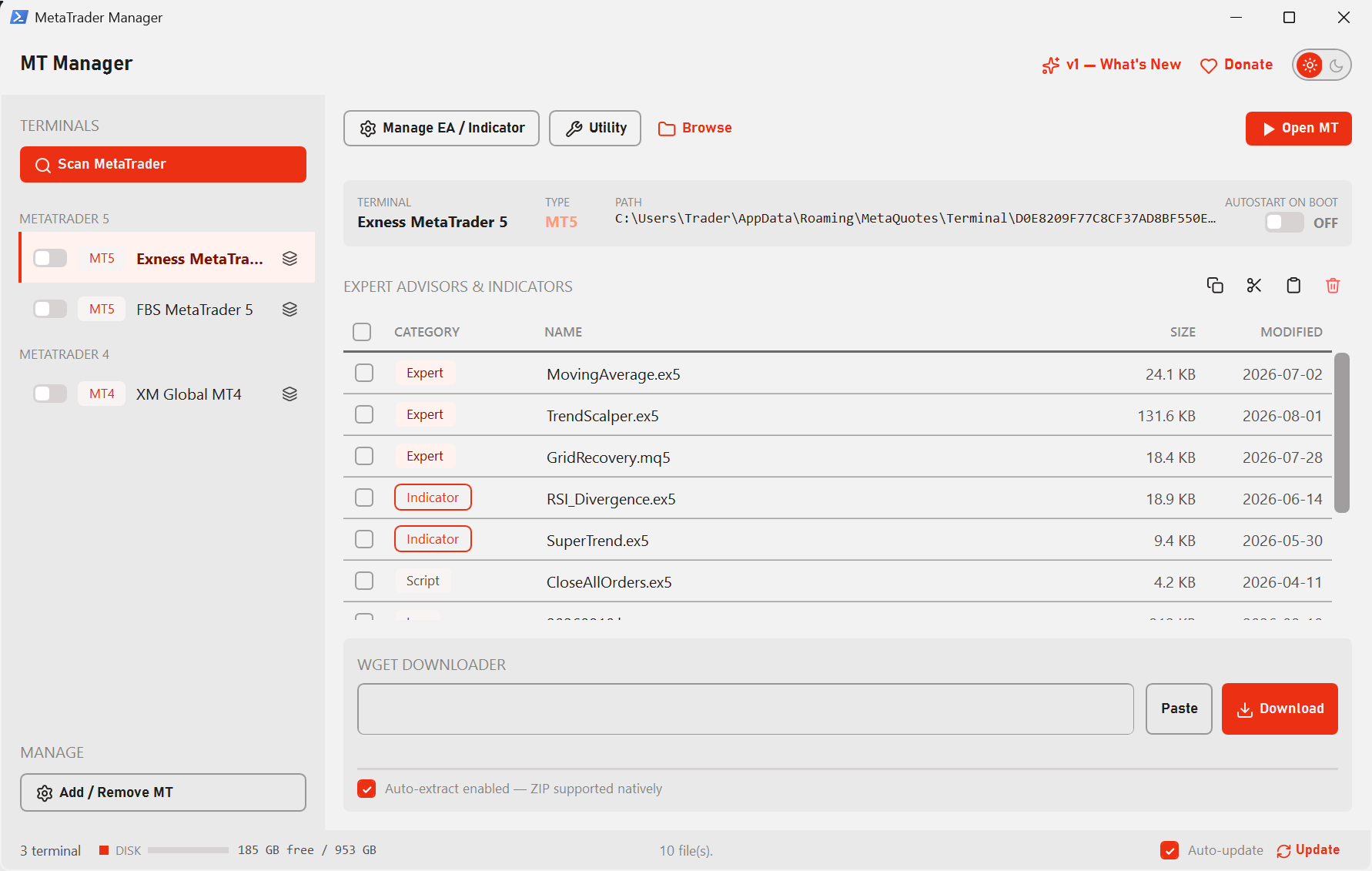
Dark and light themes

One click switches the theme and the whole app follows instantly — title bar included.

Your choice is remembered, so it opens the way you left it.

MT Manager in its light theme

Always up to date

MT Manager checks for updates, downloads, installs and restarts itself — you just press one button.

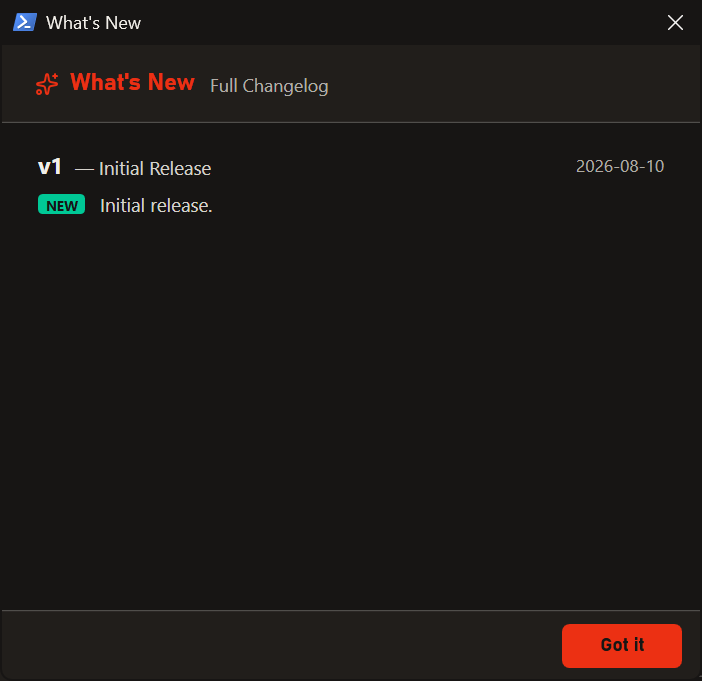
Every release comes with notes you can read any time from What's New.

The What's New window listing release notes

Download EAs straight from a link

Paste a URL — or a full wget command — into the Wget Downloader box and the file downloads with a progress bar. .zip files are extracted automatically the moment they finish, so an EA is ready without a detour through File Explorer.

Start automatically with your PC

Every terminal gets its own autostart switch. Turn it on and that terminal launches whenever Windows boots — ideal for a VPS that has to stay online. Uninstall MT Manager and every entry it created is removed for you.

System requirements

Runs on just about anything

It's a small desktop utility — if MetaTrader runs, this runs.

Operating system

Windows 7 SP1 or newer — 8, 8.1, 10 and 11 fully supported, 32-bit and 64-bit.

.NET Framework 4.8

Already included in Windows 10 (May 2019 update) and later. The installer points you to Microsoft's download if it's missing.

MetaTrader

MT4 and/or MT5 installed normally. Portable installations aren't detected.

Disk & memory

About 10 MB for the app, and nothing special for RAM — it's a lightweight tool.

Administrator rights

Not required — it installs per user. Admin is only needed to duplicate a terminal living inside Program Files.

Internet

Only for the broker list, update checks and the downloader. Everything else works offline.

Installation

Three steps, then you're done

There's nothing to configure afterwards.

Download

Grab the latest installer from the Releases page.

Run the installer

Follow it through. No admin rights needed — it installs for your user account.

Scan

Open MT Manager, press Scan MetaTrader, and your terminals appear.

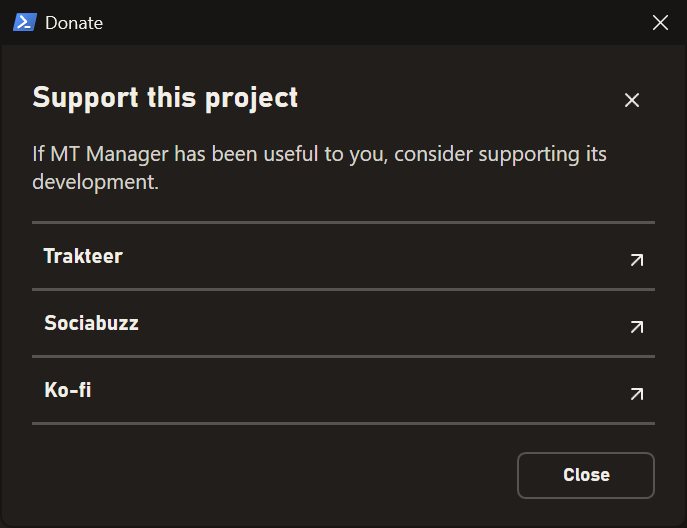
Support this project

MT Manager is free for anyone to use

If it saves you time, any support at all goes a long way toward keeping it developed.

The Donate window inside MT Manager listing the three support options
FAQ

Questions people ask

Does MT Manager change my trading settings or accounts?

No. It only manages files and folders that belong to your terminals — installing, copying and deleting EAs and indicators, and clearing logs and caches. Your accounts, charts and trading settings are never touched.

Why doesn't my terminal show up when I scan?

MT Manager reads terminals that were installed normally. MetaTrader running in portable mode keeps its data inside its own program folder, so it isn't detected.

Will my MetaTrader data be deleted if I uninstall MT Manager?

No. Only MT Manager's own things are removed — its settings and any autostart entries it created. Your MetaTrader data folders are left untouched.

Is this paid software?

No, it's completely free.